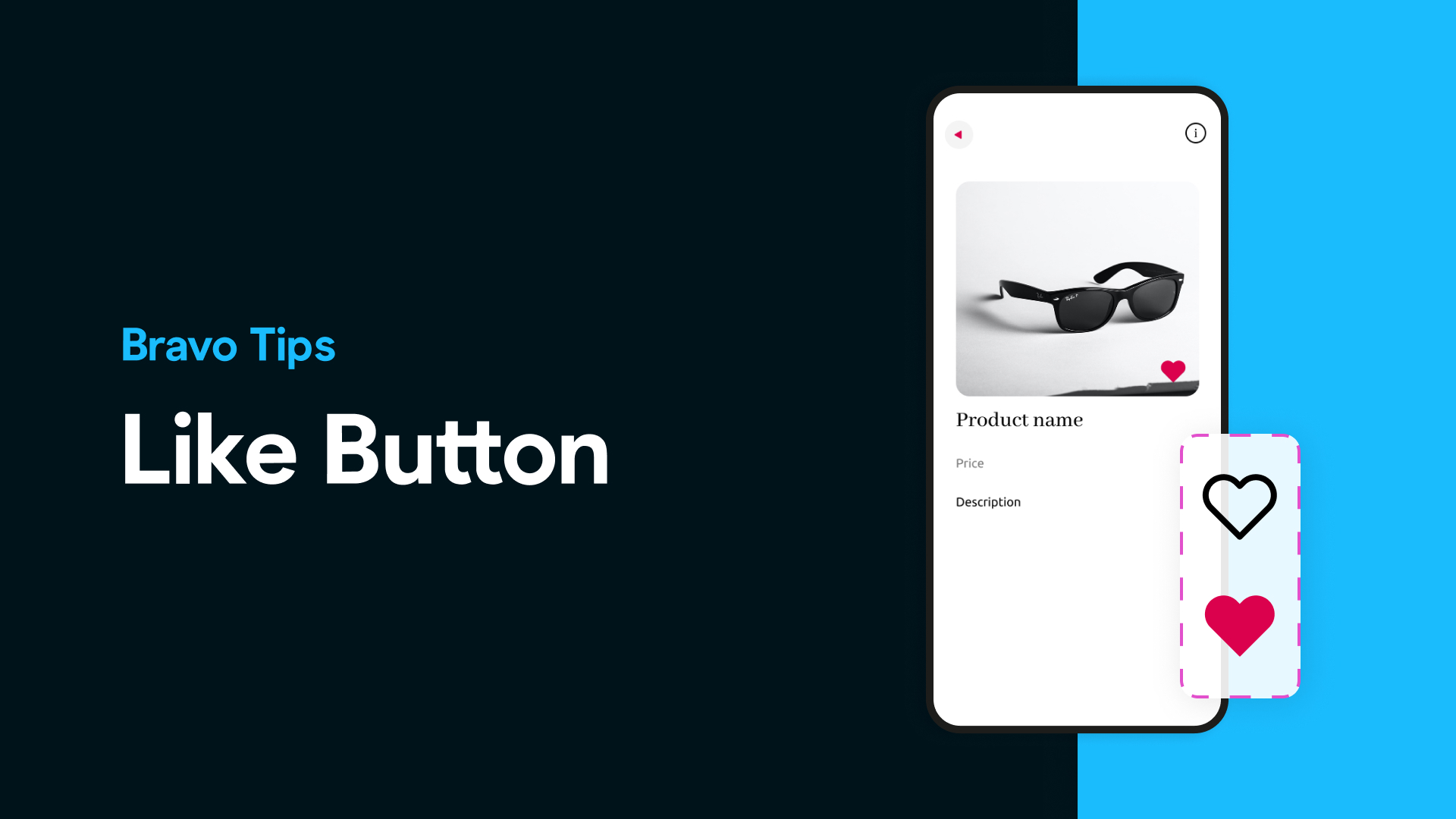
Let your users interact with your content by liking items, saving products, or building a personalized favorites list in your mobile app. With Bravo Studio, you can implement this type of interaction visually, using Figma and Bravo Tags—all without writing a single line of code.
Here’s how to add a Like/Favorite button using Bravo's stateful component setup. 🎥 Watch the video
Step 1: Design Your Like Button in Figma
Create a component with two visual states:
A default state (like an empty heart)
An active state (like a filled heart)
There are two ways to create this:
Using Figma Variants: Create a component with two variants labeled default and active using a state property.
Separate Components: Design two individual components and place them in the same group.
Create a component with two variants labeled default and active using a state property.
Design two individual components and place them in the same group.
Want to move faster? Use one of our free Figma templates or sample apps. These include ready-made components that you can easily customize and reuse in your own project.
Step 2: Add Bravo Tags
Once you have both states designed:
Group the two variants inside a frame or component group.
Add the following Bravo Tag to the group:
[state-set:likebutton] // You can name this however you like
Inside the group, tag each variant like this: [state:default][action:remote] [state:active][action:remote]
These tags define the toggle behavior. Bravo Studio will switch between the default and active states each time the user taps the component.
Pro Tip: The tag structure here is the same one used for things like active tab menus.
Step 3: Import and Test
Import your Bravorized Figma file into Bravo Studio
Open your app in Bravo Vision and tap the like icon
You should see the component toggle between liked and unliked visually, confirming that your setup works.
This method works perfectly for:
Liking or favoriting products
Saving content like blog posts or meditation tracks
Building custom lists or user preferences
📖 Learn More
For more help and advanced options (like connecting your Like button to an actual backend or saving state via API), check out the official Bravo docs.