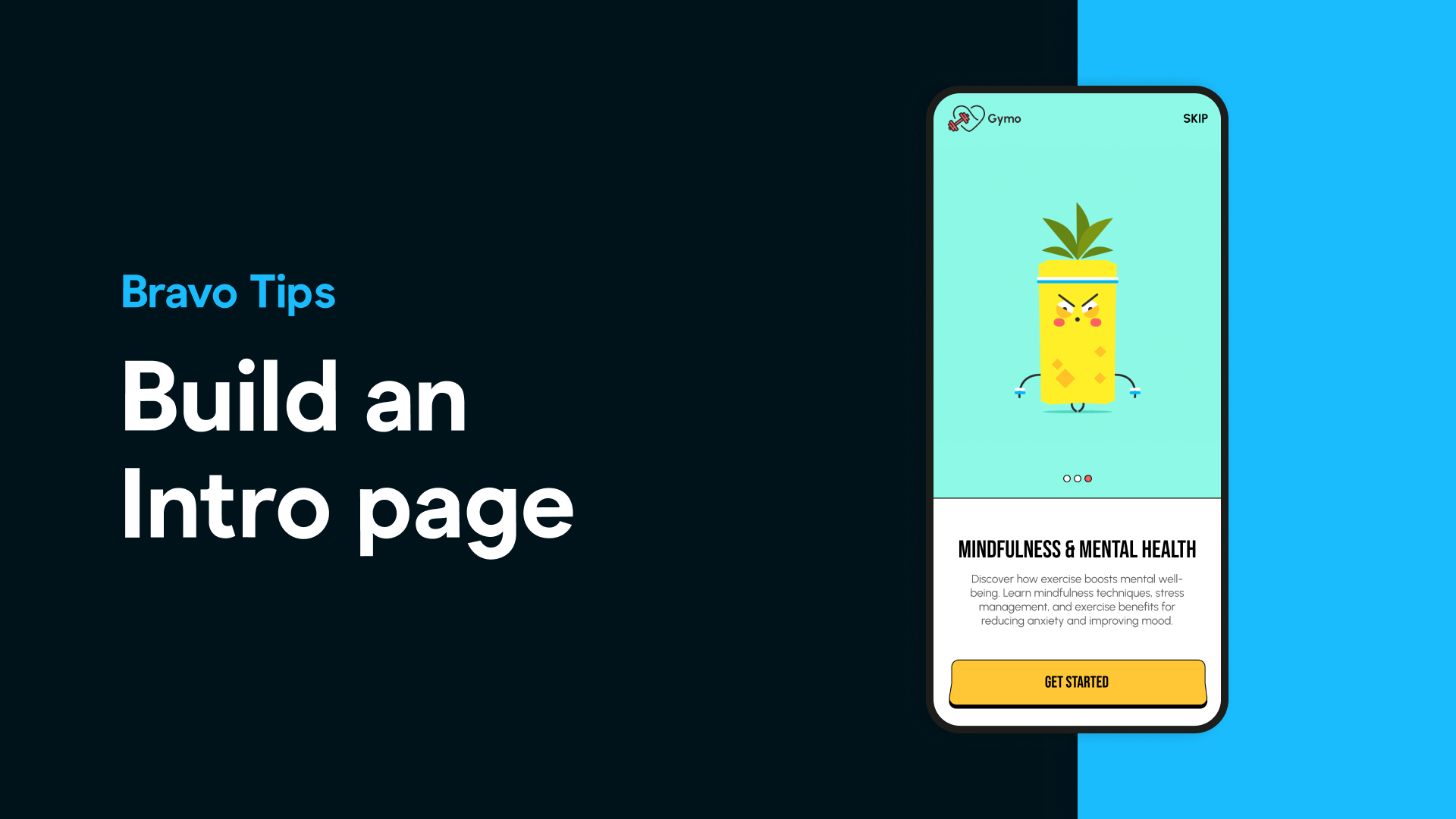
Creating a smooth first impression is one of the most important parts of launching a successful mobile app. That’s why many apps include intro pages (also called onboarding screens) — short walkthroughs that guide users through key features the first time they open the app.
With Bravo Studio, adding intro pages is simple, flexible, and completely no-code.
🎥 Watch the video here
In this post, we’ll walk you through how to design, tag, and implement intro pages in your Bravo-powered mobile app — directly from Figma.
What Are Intro Pages?
Intro pages are commonly used in mobile apps to help first-time users understand how the app works. They typically appear when the app is opened for the first time and include 1–3 screens that users can swipe through or skip.
With Bravo Studio, you have two simple options:
[intro:once] — Show the intro pages only the first time the app is opened.
[intro:always] — Show the intro pages every time the app is opened.
This gives you control over the user experience depending on how much guidance your app requires.
Design Your Intro Screens in Figma
You can design your own intro pages from scratch in Figma or:
Use one of Bravo Studio’s sample apps that already includes intro flows.
Browse the Figma Community for beautiful, free onboarding UI kits (like the one used in our example).
Once your screens are ready, it’s time to Bravorize them!
Add the Bravo Tags
To make your intro screens work in Bravo Studio:
Select the frame that contains each intro screen.
Rename the frame with the correct Bravo Tag: Use [intro:once] if you want it to display only the first time.Use [intro:always] if you want it to show every time the app opens.
Use [intro:once] if you want it to display only the first time.
Use [intro:always] if you want it to show every time the app opens.
Add a Skip button and use [action:go-to-page] to send users directly to your main app screen if they choose to skip.
Import and Test
After tagging your screens:
Import your design into Bravo Studio using the Figma plugin.
Test the intro flow in the Bravo Vision app on your mobile device.
Make sure the navigation and logic work as expected before publishing.
Best Use Cases for Intro Pages
Onboarding new users
Explaining complex features
App walkthroughs
Product demos and education
Branded first impressions
Final Thoughts
Intro pages are a great way to increase retention, reduce confusion, and create a better onboarding experience for new users. With Bravo Studio and a simple set of Bravo Tags, you can build an elegant, fully functional onboarding flow — without writing a single line of code.
🔎 Learn more about Intro Pages in our docs.